When restarting an SQL Server, the SQL databases undergo recovery. The databases cannot be accessed unless the recovery is complete. However, at times, you may find the database stuck ‘In Recovery mode’ for a long time. In this post, I will share my experience about encountering the SQL database stuck in ‘Recovery mode’ issue and how I restored my database by using Stellar Repair for MS SQL software.
Problem Scenario
Last week after SQL server restart, the SQL database went in recovery mode. I waited for the recovery process to finish; however, the database has been stuck “In Recovery” mode for a long time. This is preventing the database from coming online, and users cannot access the database. I need to bring the database back online.
What did I do to Perform Restore the SQL Database?
I checked the SQL Errorlog, and it showed a message specifying that the database is still in recovery mode. The last message in the errorlog says ‘2 189 255 seconds remaining (Phase 2 of 3)’ which is almost 25 days.
I googled the message displayed in the SQL errorlog and found that the issue could be caused due to the long-running transaction. Several posts suggested waiting for the database recovery process to complete. However, it’s already been several days, and the database remained in recovery mode. And, I could not spend more days on recovery, as the pressure to restore the database to normal mode was building up. I then searched for a quick fix to restore the SQL database to normal mode.
I tried bringing the database online by using a ‘RESTORE…WITH RECOVERY’ command. However, it put the database through the same steps. I decided to opt for a professional SQL repair tool that could help to quickly and efficiently restore my SQL database to its original state. This was when I came across Stellar Repair for MS SQL software. After reading MVP reviews about the software, I decided to give it a try.
How Stellar Repair for MS SQL Software Works?
The SQL Recovery software requires the following minimal specifications to be met before running it on a PC:
Processor: Intel-compatible (x86, x64)
RAM: 4 GB (8 GB recommended)
Free Space: 250 MB
OS: Windows 10/ 8.1/8.0/7/Vista/Windows Server 2012/2008/2003
Downloading and installing the software takes only a few minutes. Once installed, run the software and follow these steps to restore the SQL database:
Step 1: A message will prompt asking you to stop your SQL Server and copy the db to a different location. Restart the server and proceed with repairing the database copy. Click OK.

From the software main screen, browse the MDF database file you want to repair from the ‘Select Database’ window.

Note: Use the ‘Search’ option to locate the MDF file if the file location is not known to you.
Step 2: After selecting the file, click the ‘Repair’ button and select the appropriate ‘Standard Scan’ or ‘Advanced Scan’ mode. Click ‘OK’ to initiate the repair process.
Note: Choose the ‘Advanced Scan’ mode to repair severely corrupted SQL database files.

Step 3: Click ‘OK’ when the ‘Selected MS SQL database repaired successfully’ message appears.

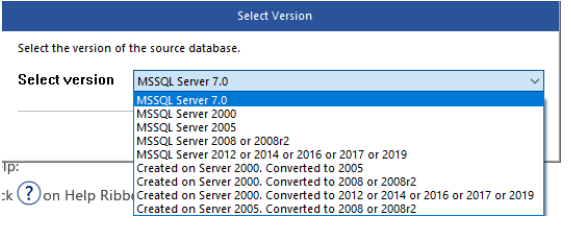
Note: The software might fail to detect the file version of a severely corrupt SQL database file. In that case, you must select your database version manually from the window that appears as shown below:
Step 4: After successful completion of the repair process, the software displays a preview of recoverable database objects.

Step 5: Select all or specific database objects that you want to retrieve from the repaired database (.mdf) file in the preview window. Click ‘Select Database’ on the File menu to save the selected, repaired, and recovered data.

Step 6: In the ‘Save Database’ window, do the following:
- Select ‘MDF’ as ‘Save As’ option
- Save the repaired file in ‘New database’ or ‘Live database.’
- Enter the required details to connect to SQL server.
- Select the location to save the repaired MDF file.
- Click ‘Save’.

After performing these